Keeping Magento secure involves more than installing the latest platform version. Adobe now provides monthly isolated security patches for Magento Open Source, making it important to check which patches are installed, identify any missing updates and verify the results after deployment.
Recently, I carried out this process on a Magento 2.4.9 installation: checking the existing patch status, identifying a missing monthly patch, testing and deploying the update, and checking that the website continued to operate correctly.

Adobe’s monthly Magento security patch system
Adobe’s monthly security patch system provides targeted fixes for supported Magento Open Source and Adobe Commerce versions. These isolated patches address specific security issues without requiring a full platform upgrade for every security release.
One important detail is that the monthly patches are not cumulative. Depending on the installed version and patch history, they may need to be applied in sequence. Installing the latest patch file alone does not necessarily mean that all previous monthly security fixes are present.
This makes verification particularly important. A store can report Magento 2.4.9 as its platform version while still having one or more applicable security patches missing.
Adobe’s documentation explains the process in more detail: Generate a Patch-Status Report.
Step 1: Check the Magento version and existing patch status
The first step is to establish the installed Magento version and inspect the patch-status report. From the Magento installation directory, run:
php bin/magento --version
php vendor/bin/patch-status --version
php vendor/bin/patch-status
The first command confirms the Magento CLI version. The second checks the version of the patch-status utility, and the third generates a report of detected patches and vulnerability statuses.
The report can identify applied patches, missing patches and the status of individual vulnerabilities. This is much more useful than relying on the Magento version number alone.
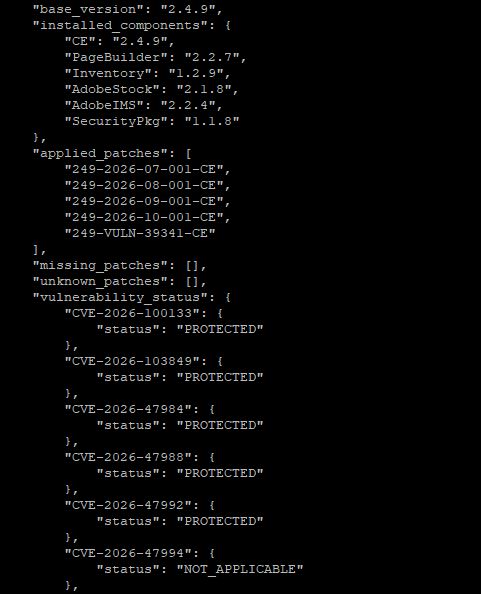
For example, an initial report from a Magento 2.4.9 installation showed the following applied patches:
249-2026-07-001-CE
249-2026-08-001-CE
249-2026-09-001-CE
249-VULN-39341-CE
However, the report also identified the October monthly patch as missing:
"missing_patches": [
    "249-2026-10-001-CE"
]
This demonstrated why checking the actual patch status matters. Although the expected earlier monthly patches were detected, the October update still needed to be investigated and applied.
The output above is an example of an initial report, before the missing patch was deployed. It should not be interpreted as the final status of the installation.
Step 2: Understand the patch-status results
The patch-status utility helps distinguish between several different outcomes:
- Applied: The utility detects the relevant patch as applied.
- Missing: The patch is applicable to the installation but has not been detected.
- Protected: The vulnerability assessment indicates that the installation is protected against the relevant issue.
- Vulnerable: The assessment indicates that the relevant vulnerability remains unaddressed.
- Not applicable: The affected component or functionality is not present in the installation, so the vulnerability does not apply in that context.
- Unknown: The utility cannot determine the status conclusively.
These results need to be interpreted carefully. A patch being listed as applied is not the same as every vulnerability being reported as protected. Similarly, a vulnerability marked as not applicable is different from one that has been fixed by a patch.
Where a report contains an unknown or unexpected result, further investigation may be needed rather than assuming the installation is secure.
Step 3: Review and test the missing patch
Once a missing patch has been identified, the next step is to confirm that it is the correct patch for the installed Magento version and components.
In this example, the relevant monthly patch was:
249-2026-10-001-CE
The CE suffix identifies the Magento Open Source patch variant. Adobe Commerce installations may require a different patch variant, so the patch must match the actual platform and component versions.
Before applying a patch, I recommend:
- Taking a verified backup of the code and database.
- Reviewing the patch notes and compatibility requirements.
- Checking the patch files and their expected location.
- Testing the patch on a staging installation wherever possible.
- Running a dry run to identify potential conflicts before making changes.
For a conventional patch file, a dry run might look like this:
patch --dry-run -p1 < patches/249-2026-10-001-CE.patch
This is an illustrative command: the actual filename, directory and patching instructions must match the files supplied for the installation. Adobe’s recommended application procedure should take precedence where it differs from a generic command-line example.
A successful dry run is useful, but it does not replace testing the completed deployment. Existing customisations or extension changes can affect how a patch applies and whether the resulting site behaves correctly.
Step 4: Apply the patch and verify the installation
After reviewing and testing the patch, apply it using the appropriate procedure for the installation. Once deployment is complete, regenerate the patch-status report:
php vendor/bin/patch-status
The purpose of this second report is to confirm that the previously missing patch is now detected and to review the resulting vulnerability statuses.
It is important not to stop at the patch command itself. The deployment should also be followed by functional checks to make sure the website remains operational.
Depending on the site, these checks can include:
- Confirming that the storefront and key category and product pages load correctly.
- Testing customer login, registration and account functionality.
- Testing the shopping basket and checkout process.
- Checking payment, shipping and order-placement functionality.
- Reviewing Magento logs for new exceptions or errors.
- Confirming that relevant background jobs, integrations and scheduled tasks continue to work.
- Rechecking the patch-status output for missing patches, unresolved vulnerabilities or unknown results.
The final report should be reviewed against the initial report. If any applicable patches remain missing, or any vulnerability remains marked as vulnerable, those findings need to be investigated before the maintenance task can be considered complete.
Monthly patches and separate security fixes
Not every security fix is necessarily included in the monthly isolated patch file. Adobe may publish separate hotfixes for specific vulnerabilities, so these need to be checked independently against the relevant security advisory and installation requirements.
For example, the patch review also identified a separately named fix, 249-VULN-39341-CE. Its presence in the applied-patches list is useful evidence, but each separate fix must still be assessed against the vulnerability and platform version it addresses.
The key lesson is to follow the official Adobe security guidance for the particular release, rather than assuming that one monthly patch automatically covers every security issue.
Adobe’s security bulletins and patch documentation provide the authoritative information for each release:
Why patch verification matters
The introduction of the monthly patch-status system makes it easier to establish what has been applied and what still needs attention. It provides a repeatable process for reviewing security updates instead of relying on assumptions based on the platform version or a previous maintenance visit.
For Magento Open Source installations, the report can also help identify vulnerabilities that do not apply because the affected component is not installed. This helps separate genuine outstanding security work from issues that are irrelevant to the specific installation.
However, the report is one part of a wider security process. It does not replace reviewing Adobe advisories, checking third-party extensions, maintaining backups, testing updates or monitoring the application after deployment.
Magento security and ongoing maintenance
Magento stores require regular technical maintenance to remain secure, stable and compatible with their hosting environment and extensions. That includes reviewing Adobe security advisories, checking patch status, applying relevant fixes, testing important functionality and investigating any unresolved findings.
At Measured Designs, we provide technical support and maintenance for Magento websites, helping businesses keep their stores updated and reduce the risk associated with outdated software and unaddressed vulnerabilities.
If your Magento store needs ongoing security updates, patch verification or general technical support, find out more about our Magento Website Maintenance service.
If you are planning a new ecommerce website or considering a Magento project, you can also learn more about our Magento 2 development services.
Keeping a Magento store secure is not simply a matter of installing an update. It means identifying the fixes that apply, deploying them correctly, checking the resulting status and confirming that the website continues to work as expected.